
MYCLOUD | Backup Website using Cpanel Tools

Downloading Home Directory Backup in cPanel

  1. Log into cPanel.
  2. Click the Backup Manager link in the Files section.
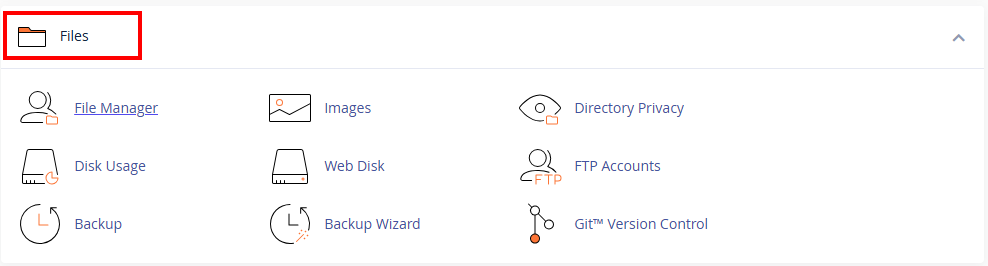
    Accessing the Backup Manager in cPanel
  3. Under Other cPanel Backup Plugins, click on cPanel Backups.
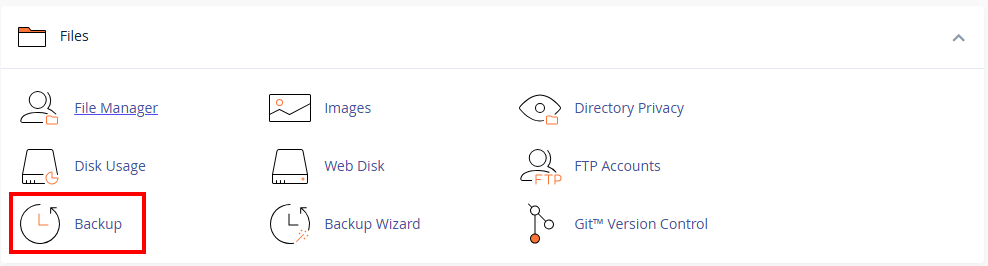
    Accessing cPanel Backups
  4. Click the Home Directory button under the Download a Home Directory Backup section. You will then begin downloading a backup of your Home Directory. This can take several minutes to complete depending on the size of your site.
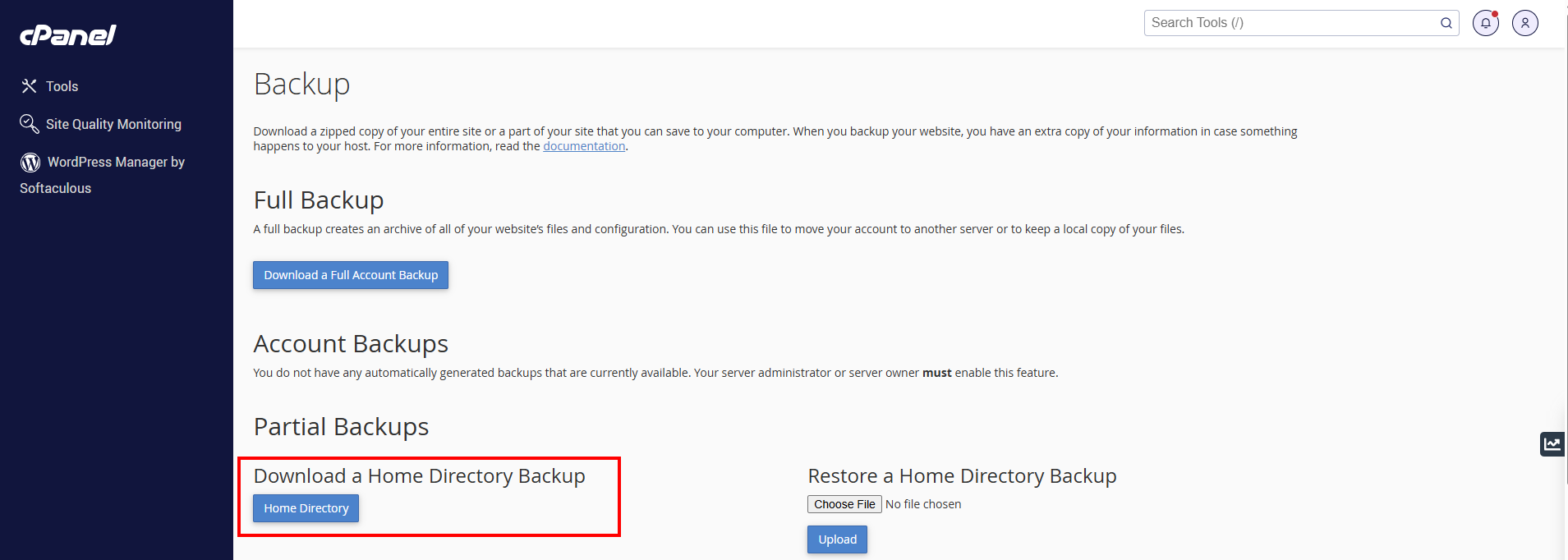
    A screenshot of a computerAI-generated content may be incorrect.

  5. You can then access the file in your browser’s download directory. In this example, the home directory backup is named backup-example.com-20-1-2026.tar.gz.

You should now have successfully backed up your website files by downloading a partial home directory backup in cPanel.



  • 0 Users Found This Useful
Was this answer helpful?

Related Articles

MYCLOUD | How does web hosting work ?

By purchasing a website hosting package, you’re basically buying space on one of our servers....

MYCLOUD | Where are your server hosted at ?

Our servers are hosted in Exitra Data Center are located in TTDI, Malaysia

MYCLOUD | Which website hosting service or package should I choose ?

You may be looking through our selection of hosting services and packages while wondering which...

MYCLOUD | What kind of web hosting service do I need ?

We offer Linux web hosting. Which one you need depends on what you want to do with your site,...

MYCLOUD | Does your hosting come with a control panel ?

Yes, our hosting comes packed with the world's number one control panel, cPanel.